Information for instructors

Instructor of record

Departments that have not listed instructors for courses must update with faculty names as soon as possible so that faculty will have access to class rosters and general web information, and so that faculty and departments can be appropriately credited and funded for their instruction.

Departments should provide Della Hawes (dehawes@uncg.edu) with the full name and University ID of the faculty member so that the correct person is recorded as instructor of record.

Accessing the class roster

Faculty members may access their class rosters through UNCGenie as long as the faculty member is designated, in Banner, as the primary instructor of the course

  • Log into UNCGenie using the “Login with ISPARTAN” text link.
  • Enter your email: username@uncg.edu
  • Click Next.
  • Enter your password.
  • Click Sign On.
    • If necessary, complete multi-factor authentication.
  • Click on the Faculty text link.
  • Click on the Faculty Main Menu tile link.
  • Click on the Class List text link.
  • All of the sections for which you are the instructor of record will display on the resulting screen.
    • You can filter by Term using the drop down at the top.
  • Click on the class you want to see the roster.
  • A summary list will show of the students in that class.
    • You can get more details on a student by clicking on their name.

Canvas Learning Management System

Instructors are advised that their rosters in Canvas represent the most recent upload of data from the Banner system. Instructors may not add a student to a roster in Canvas; it may be done only in Banner, which automatically populates into Canvas.

More information on using Canvas can be found here.

Grades and Grade Loading deadlines

Grades are due by time and dates specified on the Parts of Term Calendar.

Part of Term (Spring 2026)Grades Due
POT W Winter SessionJanuary 24th, 2026 at 5:00 P.M.
POT 1 Standard 15 WeeksMay 9th, 2026 at 10:00 P.M.
POT A First Half (7.5 weeks, 37 days)March 6th, 2026 at 5:00 P.M.
POT B Second Half (7.5 weeks, 37 days)May 6th, 2026 at 5:00 P.M.
POT L Interlink IN/A
POT M Interlink IIN/A
POT T Interlink IIIN/A

  1. Log into UNCGenie using the “Login with ISPARTAN” text link.
  2. Enter your email: username@uncg.edu
  3. Click Next.
  4. Enter your password.
  5. Click Sign On.
    • If necessary, complete multi-factor authentication.
  6. Click on the Faculty text link.
  7. Click on the Faculty Main Menu.
  8. Click on Enter Grades.
  9. Click on appropriate option (Mid Term Grades or Final Grades).
  10. Click the Course Title of the Grade roster you wish to see.
    (Note: You will see only those courses for which you are recorded as the instructor.)
  11. Scroll Down. You should see the class roster for that section.
  12. From the Grade pull down menu, select, the appropriate grade for each student. 

    If you are assigning a grade of F or I*, you must also enter a last attendance date. In the Last Attend Date column, enter the date as MM/DD/YYYY (month, day, year).
    *WX & WF are not faculty assignable grades but reflect student action. Please do not enter this as a valid grade.
  13. After entering all grades, or after entering grades for graduating students (non-graduating student grades can be entered the next day, if necessary, during the grading window), click on the Save button.
  14. As the system times out after 15 minutes, please make sure you click on the Save button at various times, particularly if you have a large roster to complete. The grades you submit are recorded in academic history. You may access the grade roster later during the grading window to submit grades for non-graduating students or to fill in any other blanks, but any grade previously recorded cannot be changed and must be submitted via the grade change form.
  15. To enter grades for another course, scroll to the top and click on that Course Title.
  16. To log out:
    • Click the Profile icon in the Banner at the top of the page.
    • Click Sign Out.

A walkthrough of this process can be found in the Knowledge Base: KB0012328

Incomplete grades

For more information please see the topic Incomplete grades in the University Catalog: https://catalog.uncg.edu/academic-regulations-policies/undergraduate-policies/grading/

Confidentiality of student records

Class rosters and class grades should be loaded only by those listed as faculty of record or his or her administrative designee who is a permanent employee of the university. Under FERPA, student employees are not considered agents of the university unless they are employed to teach a course.

In that case, a Graduate Teaching Assistant, employed for the purpose of teaching, can be considered to have “legitimate educational interest” under FERPA, and can grade that course only. Grade loading by any other type of office employee is a violation of FERPA.

Do not post grades on your office door or nearby bulletin board using student ID numbers; this is illegal. Once grades are submitted they are loaded immediately, and are instantly available for students to view on UNCGenie.

Teaching Locations (Classrooms)

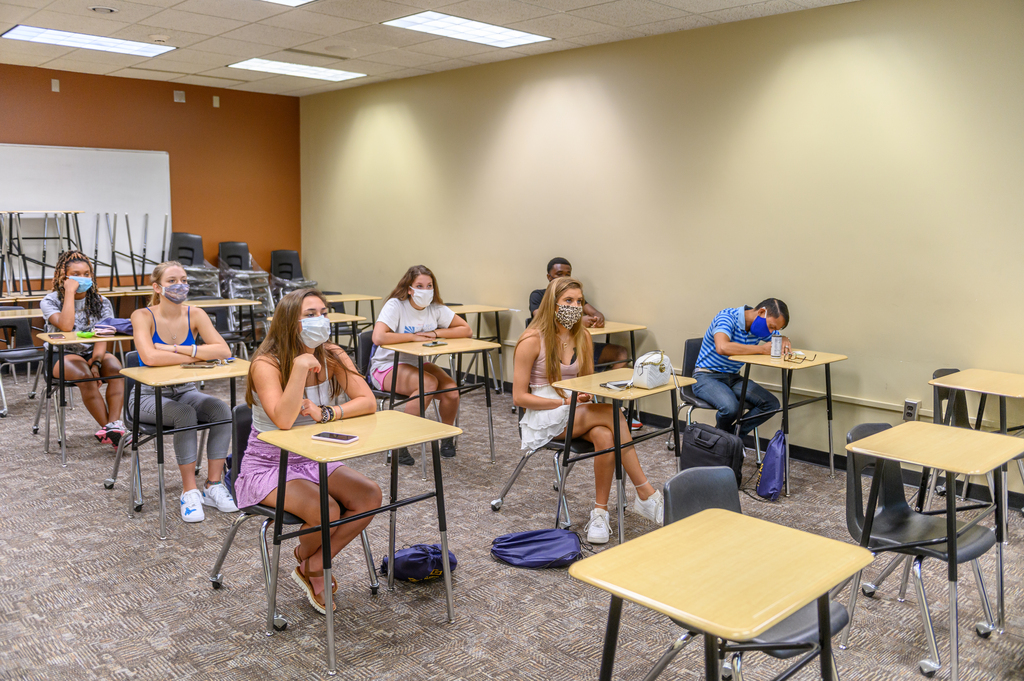
Classroom space is scarce due to increased enrollment and tight teaching schedules. Classroom assignments are now managed via the automated optimization process in Ad Astra (classroom scheduling tool).  It is no longer feasible to accommodate preferences/special requests associated with classroom assignments.  This is a much more efficient process which limits manual intervention and maximizes space utilization at the university level. 

For more information about classroom scheduling or to get support for a classroom resource, please click here.

Instructor Forms

Use the Withdrawal/Cancellation due to Class Attendance Form to drop the student from a course for failure to meet the attendance requirements as stated on the syllabus.

  • A grade of “WX” will be assigned if the effective date of the drop is before the last day to drop without penalty.
  • A grade of “WF” will be assigned if the effective date of the drop is after the last day to drop without penalty.

All grade change requests are handled via UNCGenie.

This form is for faculty that need to request a Registration Exception for a student who was not enrolled in the correct course.

Share This